- Empty cart.
- Continue Shopping
Arduino IDE Not Detecting Board? 10 Proven Fixes That Work
- Posted on
 Deepak Joshi
- 0
- Categories: Electronics, Robotics & IoT

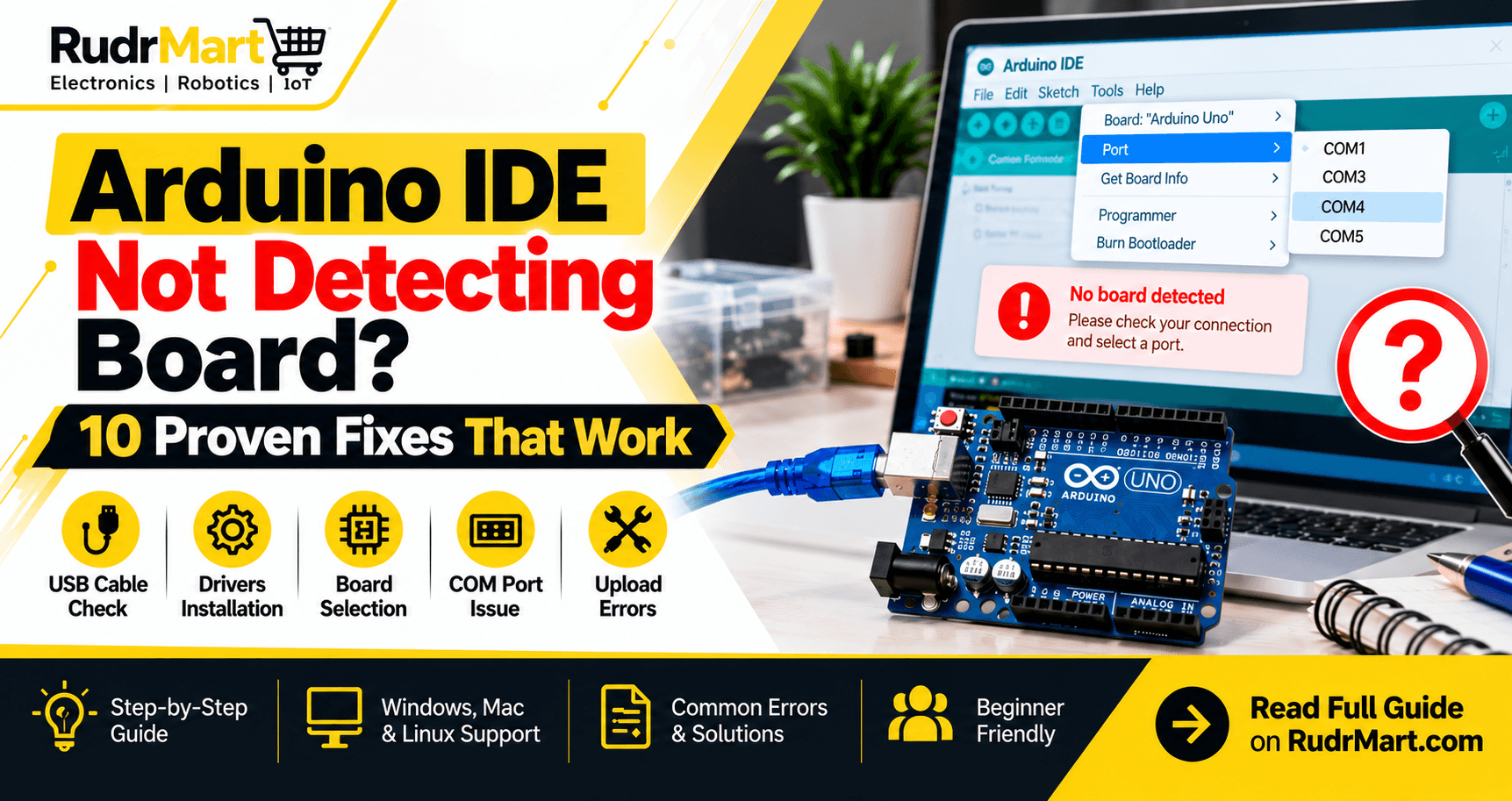
Arduino IDE Not Detecting Board is a common problem faced by beginners, engineering students, and electronics enthusiasts. You connect your Arduino Uno, Nano, or Mega to your computer, open Arduino IDE, and discover that the board is missing or the COM port is unavailable.
Fortunately, this problem does not always mean your Arduino board is damaged. In many cases, incorrect settings, faulty USB cables, missing drivers, or serial port conflicts are responsible.
In this complete guide, we will explain 10 proven troubleshooting methods to fix Arduino IDE Not Detecting Board errors on Windows, macOS, and Linux.
You will also learn how to identify common upload errors, test your Arduino board, and prevent connection problems in future projects.
Table of Contents
- Why Is Arduino IDE Not Detecting Board?
- Fix 1: Check Your USB Cable
- Fix 2: Select the Correct Arduino Board
- Fix 3: Select the Correct COM Port
- Fix 4: Install USB Drivers
- Fix 5: Check Windows Device Manager
- Fix 6: Restart Arduino IDE
- Fix 7: Disconnect External Components
- Fix 8: Check macOS and Linux Connections
- Fix 9: Resolve Serial Port Conflicts
- Fix 10: Check Bootloader and Hardware
- Common Arduino Upload Errors
- Test Arduino with Blink Code
- Prevention Tips
- Frequently Asked Questions
- Conclusion
Why Is Arduino IDE Not Detecting Board?
When you connect an Arduino board to your computer, the operating system must recognize its USB interface.
For many Arduino boards, the computer then creates a serial communication port. Arduino IDE uses this port to upload programs and communicate with the board.
If the USB connection, driver, or board configuration is incorrect, Arduino IDE may fail to identify the connected device.
Common Reasons for Arduino IDE Not Detecting Board
The most common causes include:
- USB cable supports charging but not data transfer.
- Incorrect Arduino board selected.
- COM port is missing or incorrectly selected.
- USB-to-serial driver is unavailable.
- USB port or connector is damaged.
- Another application is using the serial port.
- External components interfere with communication.
- Operating system permissions block port access.
- Bootloader or hardware malfunction.
The following troubleshooting steps help identify the exact cause.
Fix 1: Check Your USB Cable
When Arduino IDE Not Detecting Board appears, checking the USB cable should be your first step.
Some USB cables are designed only for charging. These cables can power an Arduino board but cannot transfer programming data.
How to Fix USB Connection Problems
- Disconnect the Arduino from your computer.
- Use a known-working USB data cable.
- Connect the board directly to your computer.
- Avoid USB hubs during troubleshooting.
- Try a different USB port.
- Check whether the Arduino power LED turns on.
Important: A glowing power LED does not guarantee that the USB data connection is working.
If the Arduino still does not appear, continue with the next solution.
Fix 2: Select the Correct Arduino Board
Incorrect board selection is another reason beginners experience Arduino IDE Not Detecting Board or upload errors.
Arduino IDE needs the correct board profile to compile and upload programs properly.
How to Select Your Board
Open Arduino IDE and navigate to:
Tools → Board → Arduino AVR Boards → Arduino Uno
For other development boards, select the corresponding model.
| Arduino Board | Board Selection |
|---|---|
| Arduino Uno R3 | Arduino Uno |
| Arduino Nano Classic | Arduino Nano |
| Arduino Mega 2560 | Arduino Mega or Mega 2560 |
| Arduino Leonardo | Arduino Leonardo |
If the required board package is unavailable, install it through Arduino IDE’s Boards Manager.
For classic Uno, Nano, and Mega boards, the Arduino AVR Boards package is normally required.
Note: Incorrect board selection can prevent successful uploads, but it does not necessarily stop your computer from recognizing the USB device.
Fix 3: Select the Correct COM Port
If Arduino IDE Not Detecting Board remains unresolved, check whether the computer has assigned a serial port.
The serial port acts as a communication channel between Arduino IDE and your development board.
How to Find the Correct Port
- Open Arduino IDE.
- Navigate to Tools → Port.
- Disconnect the Arduino board.
- Observe the available ports.
- Reconnect the board.
- Identify the newly appearing port.
- Select that port.
Common Serial Port Names
| Operating System | Example |
|---|---|
| Windows | COM3, COM4, COM5 |
| macOS | /dev/cu.usbmodem… |
| Linux | /dev/ttyACM0 or /dev/ttyUSB0 |
Port names vary depending on the connected hardware.
In Arduino IDE 2, the Tools → Port menu may not appear if no serial ports are detected.
If the port is missing, investigate the cable, driver, and USB connection.
Fix 4: Install or Update USB Drivers
Missing or incompatible drivers can cause Arduino IDE Not Detecting Board problems, particularly with third-party development boards.
Many Arduino-compatible boards use USB-to-serial converter chips.
Common examples include:
- CH340 or CH341
- CP2102 and related CP210x chips
- FT232 USB-to-serial interfaces
- ATmega16U2 on classic Uno R3 designs
How to Resolve Driver Issues
First, identify the USB interface chip installed on your board.
Next, open your operating system’s device management utility and check whether the hardware is recognized.
If the required driver is missing, download the appropriate version from the official manufacturer.
Restart the computer if required, reconnect the Arduino, and check the available ports.
Avoid installing drivers from unknown websites.
Many modern operating systems already support common USB serial devices, so manual installation is not always necessary.
Fix 5: Check Windows Device Manager
Windows Device Manager is a useful diagnostic tool when Arduino IDE Not Detecting Board errors occur.
It helps determine whether Windows recognizes the connected USB device.
Steps to Check Device Manager
- Right-click the Windows Start button.
- Select Device Manager.
- Expand Ports (COM & LPT).
- Look for Arduino or USB Serial Device.
- Check the Other devices section.
- Disconnect and reconnect the board to identify changes.
If the device appears with a yellow warning symbol, Windows may be experiencing a driver problem.
If no device appears, test another USB cable or port.
If Windows recognizes the device but Arduino IDE does not, inspect the board and port settings.
Fix 6: Restart Arduino IDE and Reconnect
Sometimes Arduino IDE Not Detecting Board is caused by a temporary USB communication or software initialization problem.
Restarting the connection may resolve it.
Quick Restart Procedure
- Save your Arduino sketch.
- Close Arduino IDE.
- Disconnect the Arduino board.
- Wait a few seconds.
- Reconnect the board.
- Reopen Arduino IDE.
- Select the correct board and port.
If the problem continues, restart your computer.
You should also check whether you are using a supported version of Arduino IDE.
Download the software from the official Arduino IDE website.
Fix 7: Disconnect External Components and Shields
External circuits may interfere with Arduino programming and communication.
For example, devices connected to pins 0 (RX) and 1 (TX) on a classic Arduino Uno can interfere with serial uploads.
Incorrect connections may also create electrical shorts.
How to Troubleshoot
Disconnect USB power before changing the circuit.
Remove external sensors, shields, motors, and jumper wires.
Reconnect only the Arduino board through USB.
Then select the correct board and port and attempt to upload a basic sketch.
If the upload succeeds, inspect your external circuit before reconnecting it.
Never connect high-current motors directly to Arduino input/output pins.
Fix 8: Fix Arduino IDE Not Detecting Board on macOS and Linux
Arduino IDE Not Detecting Board can also occur on macOS and Linux computers.
Although the operating systems differ, the troubleshooting process is similar.
Troubleshooting on macOS
Open:
System Information → Hardware → USB
Check whether your connected Arduino appears in the USB device list.
Then open Arduino IDE and inspect the available ports.
Common serial device names begin with /dev/cu.usbmodem or /dev/cu.usbserial.
If the board appears under USB devices but no serial port is available, investigate the driver and USB interface.
Troubleshooting on Linux
Open Terminal and enter:
ls /dev/ttyACM* /dev/ttyUSB* 2>/dev/null
This command checks for common USB serial device paths.
If the device exists but uploading fails with a permission error, inspect the serial port permissions.
On many Ubuntu-based systems, the dialout group controls serial port access.
Where appropriate, an administrator can run:
sudo usermod -aG dialout "$USER"
Log out and log back in for the permission change to take effect.
The correct group and permission settings depend on your Linux distribution.
Fix 9: Resolve Serial Port Conflicts
Another possible cause of Arduino IDE Not Detecting Board or upload failures is a serial port conflict.
A computer generally cannot allow multiple applications to control the same serial port simultaneously.
Applications That May Cause Conflicts
- Another Arduino IDE instance.
- Serial monitoring software.
- Python scripts using serial communication.
- Terminal applications.
- Hardware debugging utilities.
How to Fix the Conflict
Close unnecessary applications that may be accessing the serial port.
Close Serial Monitor or Serial Plotter if necessary.
Reconnect the board and retry uploading.
If the problem continues, restart Arduino IDE or your computer.
Avoid forcefully terminating unrelated operating system processes.
Fix 10: Check the Bootloader and Hardware
If Arduino IDE Not Detecting Board persists after all previous checks, the issue may involve hardware or firmware.
A bootloader allows many Arduino boards to receive programs without an external programmer.
However, USB detection problems and bootloader problems are not identical.
For example, a classic Arduino Uno may still appear as a serial device even when the ATmega328P bootloader is corrupted.
What Should You Check?
- Is the board receiving power?
- Does the computer recognize the USB interface?
- Is the correct board selected?
- Is the correct serial port available?
- Does uploading fail with a specific error?
- Is the USB connector physically damaged?
Some newer Arduino boards support entering bootloader mode by pressing the reset button twice.
This procedure does not apply to every board.
If the USB interface itself is damaged, restoring the main microcontroller’s bootloader may not resolve the issue.
Common Arduino Upload Errors and Solutions
Arduino IDE Not Detecting Board may appear alongside different upload errors.
Understanding the error message can help identify the problem.
| Error Message | Possible Cause | Suggested Solution |
|---|---|---|
avrdude: stk500_recv() | Communication or bootloader issue | Check board, port and connections |
ser_open(): can't open device | Port unavailable or busy | Check port selection and access |
no upload port provided | Port not selected | Select the correct port |
Permission denied | Access restriction | Check permissions |
No device found | USB detection problem | Check cable, port and drivers |
A single error message may have several possible causes.
Always read the complete error output rather than relying only on the final line.
For additional help, refer to the official Arduino troubleshooting guide.
How to Test Your Arduino Board Using Blink Code
After resolving Arduino IDE Not Detecting Board, test the board using a simple Blink program.
Open Arduino IDE and navigate to:
File → Examples → 01.Basics → Blink
Alternatively, use this example:
void setup() {
  pinMode(LED_BUILTIN, OUTPUT);
}

void loop() {
  digitalWrite(LED_BUILTIN, HIGH);
  delay(1000);

  digitalWrite(LED_BUILTIN, LOW);
  delay(1000);
}
Select the correct board and serial port.
Click Upload and wait for the process to finish.
On a classic Arduino Uno, the onboard LED should blink approximately once per second.
If the sketch uploads successfully, the basic programming connection is working.
This test does not confirm that every board component is functioning correctly.
How to Prevent Arduino IDE Not Detecting Board Problems
Preventing connection problems is easier than troubleshooting them repeatedly.
Follow these practical tips:
- Use good-quality USB data cables.
- Avoid damaged USB connectors.
- Keep Arduino IDE updated.
- Select the correct board before uploading.
- Use suitable drivers for your hardware.
- Disconnect external circuits during diagnosis.
- Avoid overloading Arduino power pins.
- Store electronic boards in a clean and dry environment.
- Use reliable power supplies for external motors and modules.
Choosing a compatible development board with clear technical specifications also makes troubleshooting easier.
For your next electronics project, explore the UNO R3 SMD Development Board available at RudrMart.
You can also visit rudrmart.com to explore development boards and electronics accessories.
Frequently Asked Questions (FAQs)
Q1. Why is Arduino IDE not detecting my Arduino Uno?
The problem may be caused by a charging-only USB cable, missing driver, incorrect port selection, or a faulty connection. Start by checking the USB cable and computer port.
Q2. How do I fix Arduino IDE Not Detecting Board on Windows 11?
Open Device Manager and check whether the Arduino appears under Ports or Other devices. Verify the USB cable, identify the correct driver, and select the appropriate port in Arduino IDE.
Q3. Why is the Arduino COM port not showing?
The computer may not be recognizing the USB serial interface. Check the cable, USB connector, driver, and device recognition.
Q4. Can Arduino IDE detect a clone Arduino board?
Yes. Many compatible Arduino boards work with Arduino IDE. However, some require a specific USB-to-serial driver or board configuration.
Q5. Why does Arduino IDE show an unknown board?
Some compatible development boards do not provide enough identification information for automatic board recognition. You may need to select the board manually.
Q6. Does Arduino Uno require a USB driver?
Driver requirements depend on the USB interface chip and operating system. Some boards work automatically, while others may require additional driver installation.
Q7. Can a damaged USB cable cause upload errors?
Yes. A damaged cable or charging-only cable can prevent communication even if the board receives power.
Q8. Why is Arduino Nano not uploading code?
Check the selected board, processor option, serial port, and USB driver. Some classic Nano-compatible boards require the older bootloader processor setting.
Q9. How do I know whether my Arduino board is faulty?
Test it using another USB data cable, computer port, and computer. If the device remains unrecognized, further hardware inspection may be necessary.
Q10. Where can I buy Arduino development boards in India?
You can explore Arduino-compatible development boards, electronic components, and DIY accessories at rudrmart.com.
Conclusion
The Arduino IDE Not Detecting Board problem can interrupt your electronics projects, but many common causes are straightforward to investigate.
Start by checking the USB data cable, board selection, serial port, and USB drivers.
Next, inspect operating system settings, close conflicting applications, and disconnect external circuits.
If the board is recognized but uploading still fails, investigate the bootloader and hardware.
By following these 10 troubleshooting methods, you can identify common connection issues and improve your Arduino development experience.
Ready to start your next Arduino project?
Explore compatible development boards and DIY electronics accessories at rudrmart.com.
Learn. Build. Innovate with RudrMart.
Arduino COM PortArduino IDE Not Detecting BoardArduino IDE TroubleshootingArduino TutorialArduino UnoArduino Upload ErrorArduino USB Driverrudrmart